![Stremio - an affordable way to enjoy VOD [ENG 🇬🇧]](/images/stremio.png)
🇬🇧->🇵🇱 Przejdź do polskiej wersji tego wpisu / Go to polish version of this post
Table of contents:
- Introduction
- What is Stremio
- Differences from Classic VOD Services
- Differences from Kodi, Plex, and Jellyfin
- Basic Configuration
- Stremio and Legality
- Add-ons
- Basic Usage
- Tracking What You’ve Watched (Trakt)
- Savings
- Summary
Introduction
For me, Stremio is one of the biggest discoveries of late 2025. Although I initially approached the subject with skepticism, this platform has completely changed the way we consume media at home. The hardest part of the entire process was convincing my wife to abandon the familiar and convenient apps. However, once she saw how it works in practice and that everything is in one place, there could only be one decision: we cancelled our subscriptions to all the streaming platforms we had been paying for. The result? My wife now uses Stremio even more often than I do.
If you’re wondering how to free yourself from the rising costs of VOD without sacrificing convenience, this post is for you.
What is Stremio
Stremio is a free media center application that serves as a hub for video content. On its own, the program is merely a player with an empty library. It’s only after installing the right extensions (add-ons) that it transforms into a powerful tool aggregating movies, TV shows, live TV, or podcasts from various sources into one extremely clean and modern interface.
Differences from Classic VOD Services
Classic services (like Netflix, HBO, Disney+, etc.) have their own servers and closed libraries, which require a monthly subscription to access. Stremio does not host its own content. It acts as a search engine and player – you decide which sources (via add-ons) the app should fetch (or stream on the fly) media from. Instead of jumping between five different apps to find a specific movie, you type the title into Stremio and instantly see all available sources. I guarantee you won’t be able to point me to a piece of content available on any streaming service that I can’t find on Stremio.
Differences from Kodi, Plex, and Jellyfin
This is the most frequent question I received on Mastodon under my posts about Stremio. The differences are fundamental:
- Plex / Jellyfin - This software is for people who already have their own video files on a disk. They require setting up your own server (e.g., on a NAS) that will transcode these files and share them with end devices (TV, tablet, smartphone, or laptop).
- Kodi - A powerhouse with massive capabilities, but heavy, difficult to configure, and often slow on weaker devices (like cheap TV sticks). Kodi’s add-on configuration is local – if you change devices, you have to set everything up from scratch.
- Stremio - It’s like Kodi, but lightweight and incredibly simple. Add-ons are installed on your cloud account, not on the device. You install an add-on on your computer, and once you log in on your TV, everything is already there and working. Stremio also doesn’t require keeping files on your own drives – it relies on streaming.
Basic Configuration
To start watching your first TV show episode through Stremio, you only need a few minutes.
Installation on Various Devices (TV, Computer, Phone)
The app is available on most popular platforms (Windows, macOS, Linux, Android, Android TV, select Smart TV systems). You can download them here: Official Stremio Website - Downloads.
Stremio Web (Browser Version)
If you don’t want to or can’t install the app on a specific device, you can use the browser version at web.stremio.com.
Essential Add-ons
To get started, you only need three key extensions. They are usually installed by clicking a configuration link on their pages, which redirects you to the Stremio app:
- Comet / MediaFusion - the main add-ons for finding video sources (torrents). You don’t have to choose just one; installing both provides redundancy (you might also consider Torrentio, but its stability has been hit-or-miss lately).
- OpenSubtitles - the official add-on (usually pre-installed), which automatically finds subtitles in your chosen language.
Real-Debrid or VPN
For legal and performance reasons, you need one of the two options below:
- VPN - hides your IP address,
- Real-Debrid - a service that acts as a proxy; it downloads and shares the file via P2P and then simply streams it to us.
I will describe both options in more detail later in this post.
Stremio and Legality
WARNING: Using Stremio in the way I will describe further is balancing on the edge of legality. If this is consistent with your conscience, know that you do so at your own risk. If you are outside of Poland, double-check the regulations regarding the use of P2P networks in your territory.
Is Using Stremio Legal?
Simply downloading and using Stremio, as well as watching content from official add-ons (e.g., public domain classics), is 100% legal. The issue arises when you install community add-ons based on torrents. In this case, Stremio relies on the BitTorrent protocol (P2P). This means that while watching a movie, you are simultaneously sharing it, which in many countries carries heavy financial penalties for copyright infringement. In Poland, this isn’t as clear-cut, but it can be simplified as: downloading for personal use is legal, sharing is not. This seems to be close enough to the truth.
VPN
If you have a VPN, it’s fairly easy – a good VPN (if you can trust any of them at all) should mask your real IP address and thus protect you from potential legal consequences.
If I were to recommend any (though reluctantly), it would be (order is not accidental):
Real-Debrid
This is a much better, cheaper, and often faster solution than a VPN. Real-Debrid is a service that downloads torrents to its own servers and then sends them directly to you via a secure, encrypted connection (HTTPS).
- Your IP is never visible in the P2P network (you aren’t sharing anything).
- Speed depends only on your connection – no buffering issues, even with 80 GB 4K files.
The cost is approximately $3.50 - $4.50 per month (depending on the subscription length), and you also collect points that can be exchanged for free premium periods. It is definitely worth it. Of course, it’s not the only solution of this type, but it’s the only one I’ve personally tested and can recommend with a clear conscience.
How to Get a Real-Debrid API Key (Private Token)
To connect Stremio to your Real-Debrid account, most add-ons will require a special API key. This is your private identifier, which you should not share with anyone.
Here are the steps to get it:
- Log in to your account on the Real-Debrid website.
- Ensure you have an active Premium subscription.
- Once logged in, go directly to this hidden address. The token is also available under the My Devices tab.
- On the page, you will see a long string of characters in the API Private Token section. Copy it – this is your API key that we will use for add-on configuration described later.
Add-ons
This is where the power of Stremio lies.
How Add-ons Work
Add-ons in Stremio are not downloaded to your drive as physical files (unlike Kodi). They run on external web servers. Your Stremio app sends them a query – e.g., I have movie X, what links and subtitles do you have for it? – and the add-on returns the results. Because of this, the app runs lightning-fast even on the cheapest TVs.
Official vs. Community
- Official - Created by the Stremio team (e.g., YouTube, OpenSubtitles, Public Domain Movies). They are fully legal and safe but don’t provide access to the latest cinema hits.
- Community Addons - Created by independent developers. These integrate Stremio with P2P networks and services like Real-Debrid.
Installing and Configuring Comet
Comet is one of the newest and fastest search add-ons (an alternative to Torrentio) that works great with Real-Debrid and offers high-quality links. It is currently my number one choice after having stability issues with Torrentio for several evenings in a row.
- Go to the Comet configuration page.
- In the Resolution field, I recommend selecting:
- 4K UHD 2160p,
- QHD - 1440p,
- FHD - 1080p,
- HD - 720p.
- Leave Max Results Per Resolution and Max Size (GB) at 0, which means no limit on results or file sizes. If you have a mediocre internet connection and know 4K streaming isn’t possible, consider limiting Max Size to, say, 3 GB.
- Expand the Debrid Services section. Click Add Debrid Service. Choose Real-Debrid from the dropdown. Paste your API Private Token into the field on the right.
- Expand the Language Settings section. In Required Languages, I only have English and Polish selected, as these are the only two languages I speak fluently and I want Comet to only show content with one of these audio tracks. I also recommend checking Remove Unknown Languages to filter out content with missing language metadata. Leave the rest at default.
- In the Advanced Settings section, I have Show Cached Only and Remove Trash checked. The former removes all results that haven’t been cached (pre-loaded) by Real-Debrid. If you find a niche production, you might get a white text on a black background saying it hasn’t been cached yet but will be “available in a moment.” This is the greatest lie in history; it has never happened for me, so I simply filter out anything not already in the buffer.
- Click the buttons at the bottom:
- Install - opens your device’s Stremio app (or Stremio Web) and installs the configured add-on.
- Copy Link - copies a long configuration URL to your clipboard. To use this manually, go to Stremio -> Add-ons -> Add Add-on and paste the link.
- Setup Kodi - not applicable here.
Installing and Configuring MediaFusion
MediaFusion is a powerful “Swiss Army knife” that provides movies, series, sports events, and live TV. It has advanced scraping options, including regional trackers. It’s my number two – a backup for when Comet fails, which has happened maybe once. Configuration is similar to Comet, just with options in different places.
- Go to the MediaFusion configuration page.
- Unlike Comet, everything here is organized into tabs. Start with Provider. Click Add Streaming Provider, choose Real-Debrid, and enter any Provider Name. You can either authorize via the Authorize Real-Debrid button or paste your API Private Token. Enable Only Show Cached Streams.
- Go to the Preferences tab. In Resolutions, leave: 4K, 2160p, 1440p, 1080p, and 720p. In Quality Filter, choose: BluRay/UHD, WEB/HD, and DVD/TV/SAT. In File Size Filters, you can set limits or leave them empty. In Preferred Languages, I set English and Polish.
- Leave other tabs at default or explore them later.
- Click the purple Generate Install URL button. A window with a long link will appear. Paste it into Stremio as you did with Comet.
Installing and Configuring Torrentio
Torrentio is the classic and likely the most popular add-on of its kind, but its popularity may have hurt it; servers have struggled with the influx of new Stremio users. I hope it stabilizes soon, but it is currently my number three – the backup of the backup.
- Open the Torrentio configuration page.
- In Providers, leave defaults.
- In Sorting, I recommend By quality then seeders.
- Leave Max Results per Quality blank (All results).
- In Priority Language, I selected Polish (English is usually default).
- In Exclude Resolutions, check: Unknown, Cam, Screener, and 480p.
- Leave Video Size Limit blank if your internet can handle it.
- Most importantly, in Debrid Provider, select RealDebrid and paste your API Private Token.
- Click Install or Copy Link at the bottom.
Add-ons on TV
In the original version of this post, I forgot to mention this, so I am now editing it to say that add-ons cannot be edited from the TV app. After entering the Add-ons tab on the TV, you will only see a large button to synchronize the add-ons that you have previously installed and configured from your browser or application on your laptop or phone/tablet.
Basic Usage
Searching for Movies and Series
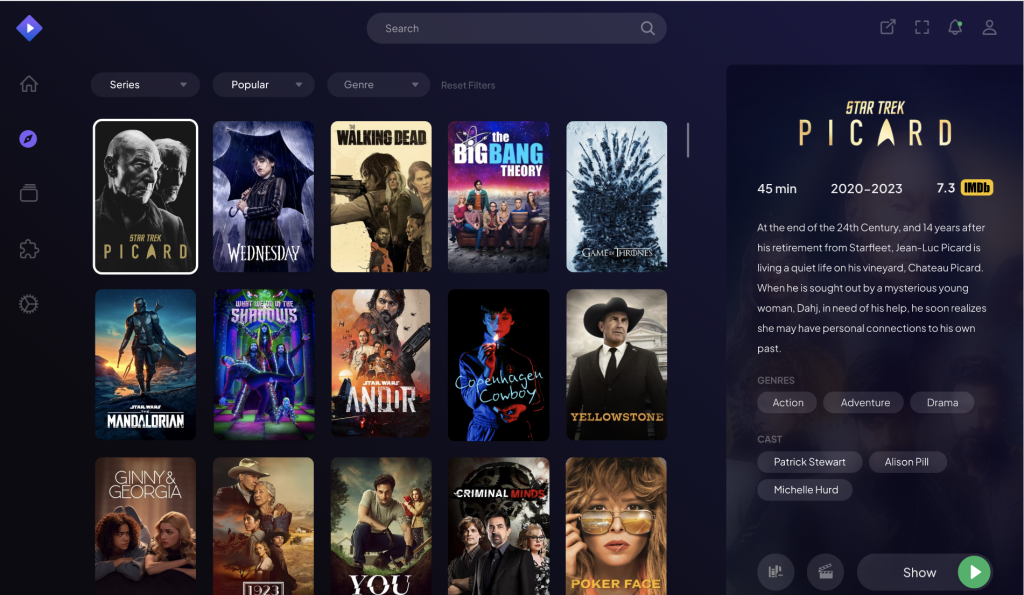
Simply use the search bar or browse the home screen (Discover or Board). If you’ve installed catalog add-ons, it will look like Netflix or similar platforms. For catalogs, the default Cinemeta is sufficient for me.
Selecting a Source from the List
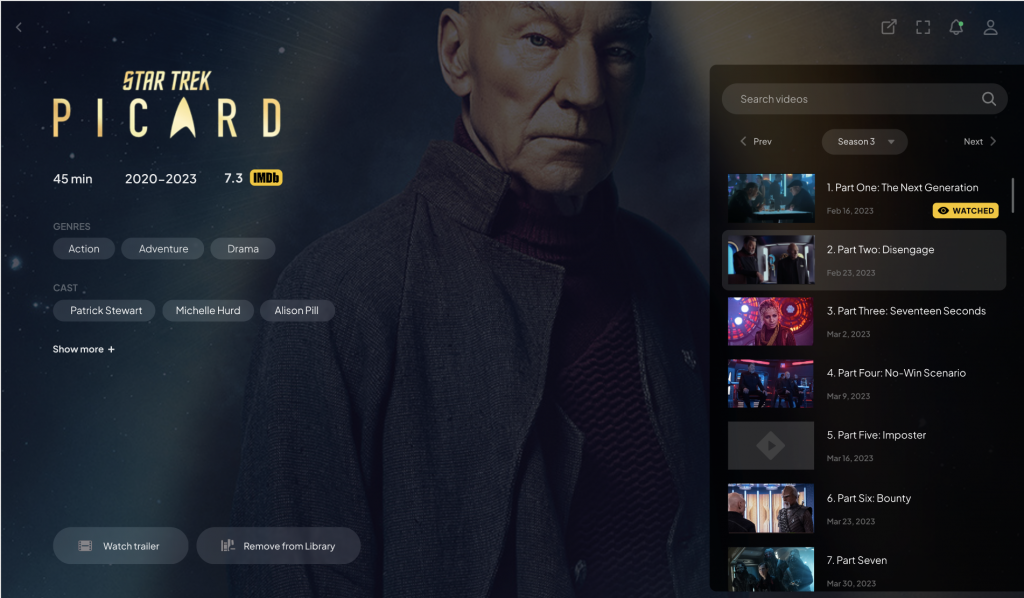
After choosing an episode, a list of options will appear. These are scraped from all your sources (Comet, MediaFusion, Torrentio). They are sorted by add-on, then resolution, seeders, or size. Don’t overthink it. Just click the first one. If something is wrong (doesn’t work, poor quality, bad audio, wrong language, no subtitles), just pick the next one on the list.
Subtitles
Stremio automatically tries to fetch subtitles from the OpenSubtitles add-on based on your account language settings. During playback, you can click the subtitle icon to change source, language, or fix synchronization (delay) on the fly. Pro tip: sync issues often happen because subtitles were made for a version without a “Previously on…” recap. Simply delay the subtitles by the length of that fragment. I also recommend checking Stremio settings to set a preferred subtitle language and a transparent background for easier reading.
Audio Tracks
If a file has multiple audio tracks (e.g., Original and Polish Dub/Lector), you’ll find an audio icon next to the subtitle icon, allowing you to seamlessly switch between available languages.
Synchronization
Stremio syncs information across all devices connected to the same account. This isn’t just about your library or “Watched” status – you can start watching a movie on your phone, move to your computer, and the player will automatically start exactly where you left off. It’s impressive because you can even switch sources (e.g., Comet on the phone, MediaFusion on the PC), and Stremio still handles it. Since Stremio is open-source, I might dig into the code one day to see how this works under the hood.
Tracking What You’ve Watched (Trakt)
For those who love full statistics, Stremio offers integration with Trakt.tv. Once paired, the app automatically checks off watched episodes. Personally, I don’t use it because I’ve used TV Time for ages (which doesn’t sync with Stremio), but many people swear by Trakt, so it’s worth mentioning.
Savings
I believe I’ve shown that Stremio isn’t just about saving money – it’s about convenience and independence. However, for the sake of completeness, let’s look at exactly how much you can save.
I checked the offers of all popular streaming platforms (converted to USD):
| VOD Service | Cheapest Plan | Most Expensive Plan |
|---|---|---|
| Netflix | $8.35 | $16.96 |
| Max (HBO) | $6.31 | $10.53 |
| Disney+ | $7.38 | $12.66 |
| SkyShowtime | $4.22 | $8.42 |
| Apple TV+ | $8.86 | $8.86 |
| Amazon Prime | $1.46 | $1.46 |
| TOTAL | $36.58 / mo | $58.89 / mo |
Note: Prices current as of March 6, 2026. Monthly costs for cheapest plans often reflect annual billing discounts (~16% savings). Prices for Polish market.
As you can see, you save a minimum of $36.58 per month, but that’s for the worst quality plans (often 720p or with ads). Stremio should be compared to the $58.89 amount because that’s the quality it offers – everything maxed out. The real cost of Stremio is only the Real-Debrid subscription, which is about $4.30.
Not to mention, Stremio features productions that cannot be found on any of these six leading platforms. A prime example is Schitt’s Creek, which my wife hunted for a long time; it is not available on any streaming subscription in Poland. This is certainly not the only such case.
Summary
Stremio combined with Real-Debrid is a solution that, once configured, just works. It’s no longer a hobby for enthusiasts but a fully-fledged, stable alternative to the fragmented VOD market. If you are intimidated by rising subscription prices and the fact that your favorite series are scattered across five different apps – give Stremio a chance. Your wife (and your wallet) will likely thank you. I speak from experience.
Questions about configuration? Feel free to reach out on Mastodon or in the comments section below!